
Download RecForth – Free HD Screen Recorder for Windows, Mac, Android & iOS
RecForth is a powerful, user-friendly screen recorder designed for content creators, educators, gamers, and professionals who need reliable tools to capture high-quality video content. Whether you're recording a live webinar, creating a tutorial, streaming gameplay, or conducting virtual meetings, RecForth delivers seamless performance across multiple platforms. With support for 1080P and 4K UHD recording, flexible recording areas, multi-audio input, and advanced features like webcam overlay and cursor effects, RecForth stands out as a top-tier screen recording solution. The software ensures secure, smooth, and uninterrupted recording with options to pause and resume, making it ideal for long sessions. Available for Windows, Mac, Android, and iOS, RecForth offers both free and premium versions, with premium features accessible via a one-time $14.99 lifetime license or an annual subscription of $9.99.
Key Features of RecForth Screen Recorder
RecForth offers a comprehensive suite of features tailored for both beginners and advanced users. One of its standout capabilities is HD and 4K UHD screen recording, allowing users to capture every detail with stunning clarity. Whether you're recording a complex software tutorial or a high-speed gaming session, the 1080P and 4K resolution options ensure crisp, professional-grade output. The software supports recording at up to 120 FPS, making it perfect for fast-paced games like PUBG or Minecraft, where smooth motion is critical.
Another major advantage is the flexible recording area selection. Users can choose to record the entire screen, a specific window, or a custom-defined region. This precision helps reduce file size and focus on relevant content, especially useful for tutorials or presentations. The multi-audio input support is another game-changer. RecForth allows simultaneous recording of system audio, microphone input, and other audio devices, enabling creators to narrate their screen with voiceovers while capturing background music or game sounds.
For content creators, the webcam overlay feature is a must-have. You can seamlessly integrate your face into the recording, ideal for vlogs, teaching videos, or personal commentary. The software also includes mouse pointer highlighting, customizable cursor effects, and a countdown timer to prepare for recording. Plus, the ability to pause and resume recordings means you won’t lose progress if interrupted. These features, combined with a clean, intuitive interface, make RecForth one of the most versatile screen recording tools available today.
Installation & Usage Guide: How to Use RecForth on Windows, Mac, Android & iOS
Installing RecForth is quick and straightforward across all major platforms. On Windows, simply visit the official website, download the installer (available for both 32-bit and 64-bit systems), and run the .exe file. Follow the on-screen prompts to complete the setup. Once installed, launch the app and grant necessary permissions, such as access to your microphone and camera if needed.
For Mac users, download the .dmg file from the RecForth website. Open the file, drag the RecForth app into your Applications folder, and launch it. You may need to adjust security settings in System Preferences > Privacy & Security to allow the app to run, especially for screen recording access.
On Android, RecForth is available on the Google Play Store. Search for “RecForth Screen Recorder,” install the app, and grant permissions like screen recording and microphone access. On iOS, the app is available via the App Store. After installation, go to Settings > Privacy > Screen Recording and enable RecForth to appear in the screen recording menu.
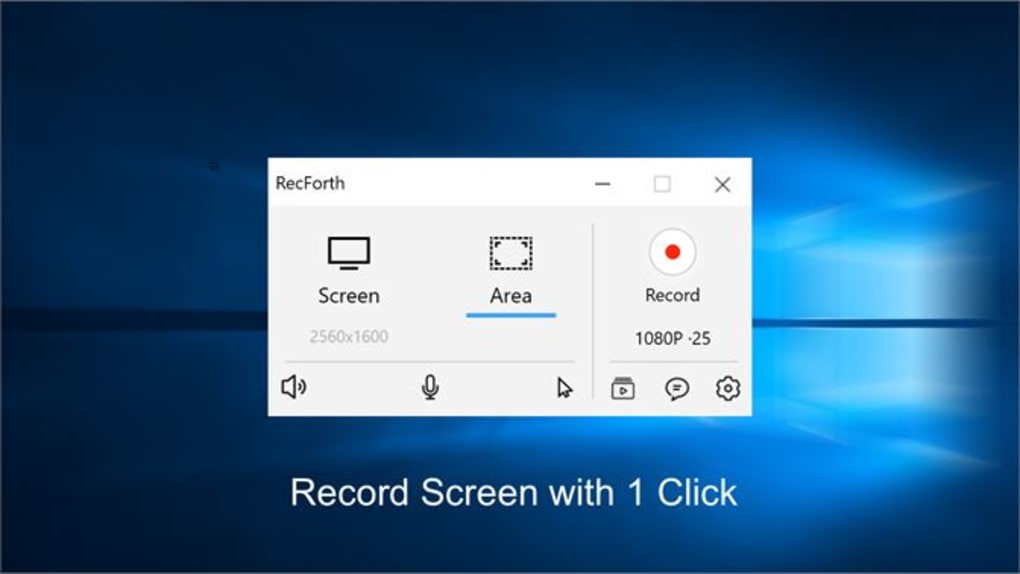
Once installed, launching RecForth brings up a simple interface with recording options. Select your recording area (full screen, window, or custom), choose audio sources, and enable webcam if desired. Click the red record button to start.
The interface displays a countdown timer and shows a small overlay indicating recording status. To pause, simply click the pause button—your recording will resume when you click play again. When finished, stop the recording and save the file in your preferred format (MP4, AVI, etc.).
The process is intuitive and requires no technical expertise, making it accessible for users of all skill levels.
Compatibility & System Requirements
RecForth is designed to be highly compatible across modern operating systems, ensuring broad accessibility for users worldwide. The software supports Windows 7 and later, including Windows 10 and Windows 11, with full compatibility for both 32-bit and 64-bit architectures. On macOS, RecForth runs smoothly on macOS Mojave (10.14) and later, including the latest versions like Sonoma. This ensures that even older Mac systems can benefit from high-quality screen recording without performance issues.
For mobile users, RecForth is available on Android 6.0 (Marshmallow) and above, supporting a wide range of devices from budget smartphones to flagship models. On iOS, the app is compatible with iPhone 6s and later, as well as iPad models from the 5th generation onward, including the iPad Pro series. This broad compatibility makes RecForth a go-to choice for creators who work across multiple devices.
Hardware-wise, RecForth is optimized for performance. While it runs efficiently on most modern systems, for 4K recording and high frame rates (up to 120 FPS), a GPU with hardware encoding support (like NVIDIA NVENC or AMD VCE) is recommended. The software also works well with integrated graphics, though performance may vary depending on system specs. RAM of at least 4GB is advised, with 8GB or more recommended for multitasking and long sessions. Storage space is also important—4K recordings can be large, so ensure you have sufficient free space on your drive.
Pros and Cons of RecForth Screen Recorder
- Pros:
- High-quality 1080P and 4K UHD recording with up to 120 FPS
- Flexible recording areas: full screen, window, or custom region
- Multi-audio input: system sound, mic, and external devices
- Webcam overlay with customizable effects
- Pause and resume recording functionality
- Countdown timer and pointer highlighting for better tutorials
- Available for Windows, Mac, Android, and iOS
- Secure, lightweight, and low CPU usage
- One-time lifetime license option at $14.99
- Cons:
- Watermark on free version recordings
- Advanced features require in-app purchase
- 4K recording may strain older systems
- Mobile version lacks some desktop features
- Limited editing tools within the app
Frequently Asked Questions (FAQ)
Is RecForth free to download and use?
Yes, RecForth offers a free version that allows basic screen recording with a watermark. You can download and use it without cost, but to remove the watermark and unlock premium features like 4K recording, unlimited duration, and advanced cursor effects, you need to upgrade via a one-time purchase or subscription.
Can I record my gameplay in 4K with RecForth?
Absolutely. RecForth supports 4K UHD recording at up to 120 FPS, making it ideal for high-performance gaming on titles like Minecraft, PUBG, and Fortnite. Just ensure your system meets the hardware requirements for smooth 4K recording.
Does RecForth support webcam recording?
Yes, RecForth includes a webcam overlay feature that lets you record your face while capturing your screen. You can position the webcam window anywhere on the screen and apply effects like border highlights or transparency.
How do I pause and resume a recording?
Simply click the pause button during recording. The recording will stop temporarily, and you can resume by clicking the play button again. This feature is especially useful for long tutorials or live sessions where interruptions are common.
What is the difference between the lifetime license and annual subscription?
The lifetime license costs $14.99 and grants permanent access to all premium features without recurring fees. The annual subscription is $9.99 per year and includes the same features but requires renewal each year. The lifetime option is ideal for long-term users, while the subscription suits those who prefer a lower upfront cost.
Conclusion: Why RecForth Is the Best Screen Recorder for 2024
RecForth stands out as one of the most versatile and reliable screen recording tools available today. Whether you're a student recording lectures, a YouTuber creating tutorials, a gamer capturing epic moments, or a professional conducting webinars, RecForth delivers exceptional performance across all platforms. Its combination of high-resolution recording, flexible recording areas, multi-audio support, and intuitive controls makes it a top choice for creators of all levels.
With a secure, lightweight design and minimal system impact, RecForth ensures smooth recording even during demanding tasks. The ability to pause and resume, along with webcam overlay and cursor effects, enhances the quality and professionalism of your content. While the free version includes a watermark, upgrading to the premium tier unlocks full potential at a reasonable price.
Ready to capture your next big moment? Download RecForth today and experience seamless, high-quality screen recording on Windows, Mac, Android, and iOS. Start your free trial now and elevate your content creation game!







